September 21, 2026
5 Step Redaction for Legal, Finance, HR
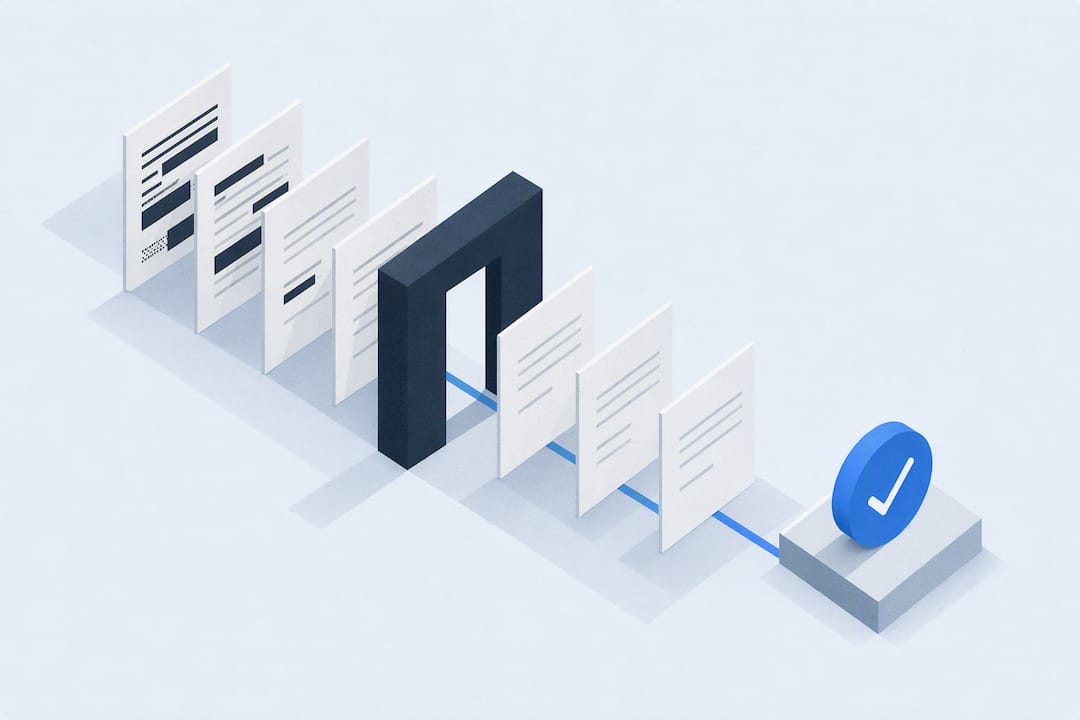
Redacting a PDF for fax requires two separate actions: deleting the underlying text or glyphs, then applying an opaque mark or rasterizing the page so nothing can be recovered. A black box alone does nothing. You also need to work from a copy of the original, strip hidden metadata and attachments, and verify the result with a selection test or a text-extraction check before you send anything.
TL;DR:
- Redacting a PDF for fax requires deleting redacted text from the content stream before overlaying an opaque mark to prevent data leaks.
- For selectable text PDFs, duplicate the original, use redaction tools to delete sensitive information, then sanitize metadata and verify with text-extraction checks.
- Scanned documents must undergo OCR for searchable text or be rasterized at 300 DPI to ensure redactions are unrecoverable.
- Always strip hidden data, metadata, attachments, and revision history after redaction, and verify with multiple tools to confirm no sensitive information remains.
- Finalize by formatting the redacted PDF for fax at 200–300 DPI, trimming unneeded pages, and using a dedicated service like PerPageFax for easy, secure transmission.
What Does Redacting a PDF for Fax Actually Require?
Most people think redaction means drawing a black rectangle over a Social Security number and calling it done. That habit has caused real leaks, because a rectangle is just an annotation sitting on top of text that a PDF parser can still extract in seconds. Genuine redaction removes the characters from the document’s content stream and then paints the opaque mark over the now-empty space, according to the Federal Court of Australia’s redaction guidance. Both steps matter. Skip the deletion, and you’ve published the very data you meant to hide.
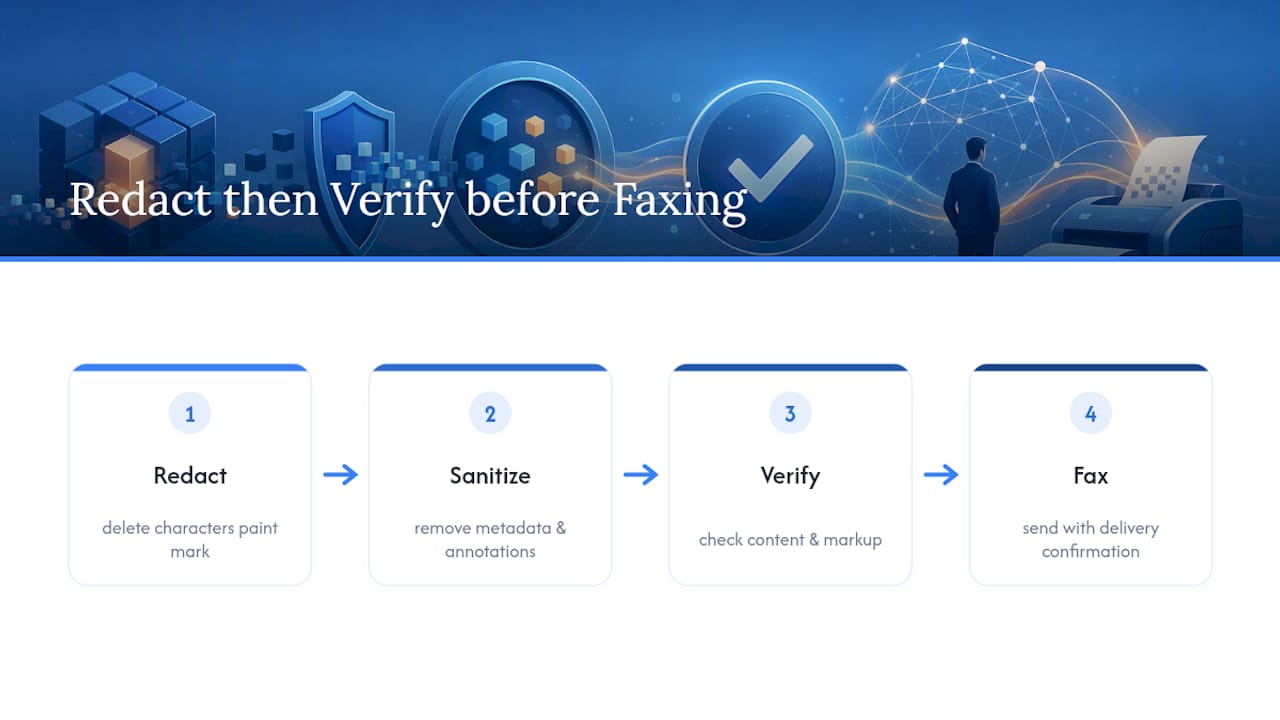
This is the standard workflow professionals in legal, finance, and HR use before faxing anything sensitive, and it’s the one this article walks through: redact, sanitize, verify, then fax.
Step-by-Step Redaction Workflow for Native PDFs
If your PDF already has selectable text, meaning you can highlight and copy words from it, you’re working with a native PDF. This is the easiest case to redact correctly, and it’s where most fax preparation mistakes happen because people rush past the deletion step.
- Duplicate the file first. Rename it clearly (e.g., “contract_redacted_draft”) and keep the original untouched somewhere safe. Redaction is often irreversible, and you may need the unredacted version later for your own records or an audit trail, per the Federal Court’s guidance.
- Mark the content for redaction. Use a redaction-aware tool like Adobe Acrobat’s Redact feature, which is built specifically to delete selected content rather than cover it. Acrobat also includes a “Find text and redact” search function that locates every instance of a term across the document, as Adobe documents in its redaction workflow.
- Search by pattern, not just by word. Run pattern searches for Social Security numbers, account numbers, phone numbers, and email addresses so you catch every occurrence, not just the ones you remember. Pattern searches speed things up dramatically on long documents, but they still miss edge cases, so a manual pass over the final pages catches what automation skips.
- Apply the redactions. This is the step that actually deletes the glyphs from the content stream, not just the visible layer.
- Sanitize the file to strip hidden data (covered in detail below), then save it under a new file name.
Decide early whether you’re redacting whole pages or just specific lines. A financial statement with one flagged account number needs a targeted box, not a blacked-out page. A cover letter with a client’s home address scattered across three paragraphs might be faster to redact page by page. For appearance, most tools let you choose a solid black or gray overlay, and some let you add replacement text like “[REDACTED]” so the reader understands something was removed rather than assuming a printing error.
Keep a simple log outside the PDF itself: who redacted the file, the date, and the reason. It takes thirty seconds and it’s the first thing anyone asks for if the document is ever questioned.
Pro Tip: Run your pattern search twice, once for account numbers and once for phone numbers, rather than one combined search. Combined patterns tend to miss numbers with unusual formatting, like international phone numbers with country codes.
Redacting Scanned Documents Before You Fax Them
Scanned pages and faxed-in documents don’t have selectable text. What you’re looking at is a picture of text, which means a PDF redaction tool searching for “SSN” will find nothing, because there’s no text there to search.
The fix depends on scan quality. If the scan is clean and in a language your OCR engine supports, run optical character recognition first. OCR converts the image into a machine-readable text layer underneath the image, which lets you apply the same delete-and-overlay redaction described above.
- If OCR comes back garbled, or you want a guarantee that nothing is recoverable regardless of how good OCR gets later, rasterize the affected pages instead.
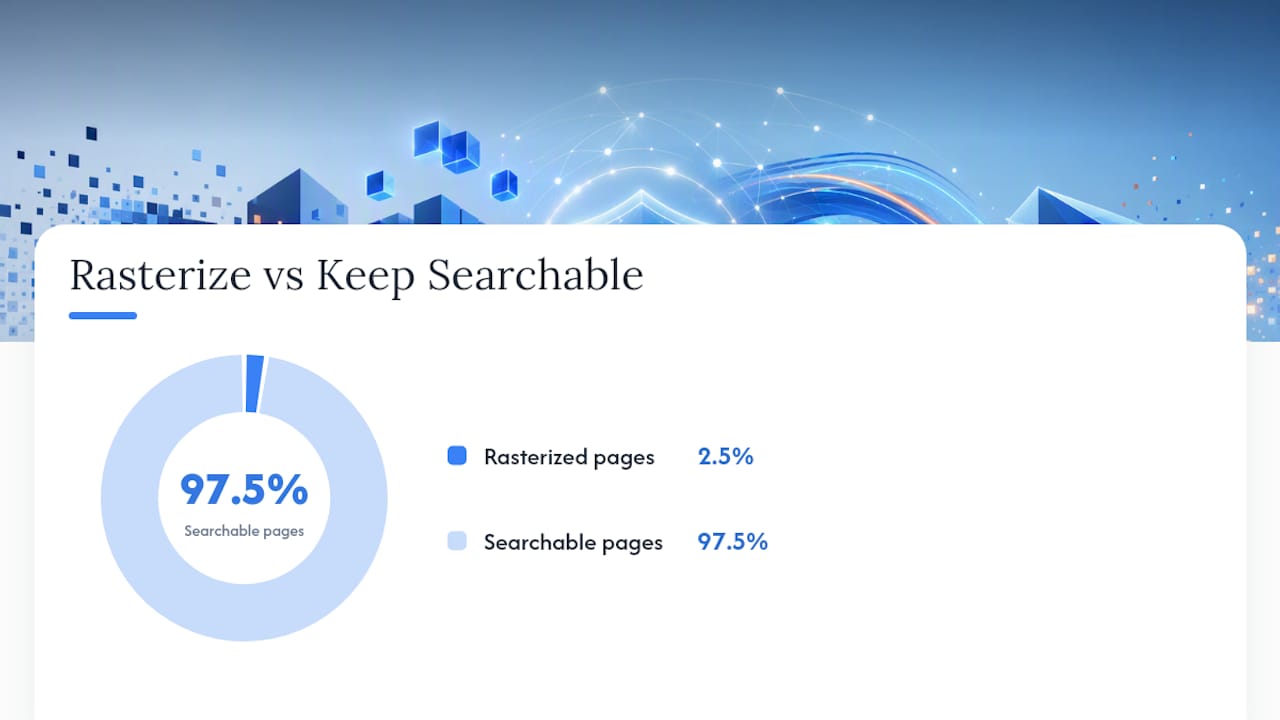
- Rasterizing renders the page as a flat image and paints the redaction boxes directly into the pixels, so there’s no text layer left to extract at all.
- Set rasterization to a resolution that keeps text and signatures legible for the recipient without bloating file size.
- Rasterize only the pages that actually need it. Converting an entire 40 page contract to images because one page had a Social Security number kills searchability and screen-reader accessibility for the other 39 pages for no reason.
Sanitizing Hidden Data, Metadata, and Attachments
Visible redaction is only half the job. PDFs carry a surprising amount of information you never see on screen: author names, document titles, keywords, tracked comments, form field data, embedded attachments, XMP metadata, and revision history. Any one of those can quietly contain the exact name or account number you just spent ten minutes redacting from the visible page.
- Remove author fields, document properties, and keywords in the file’s metadata panel.
- Delete comments, sticky notes, and tracked changes left over from drafting.
- Strip form field data if the PDF has fillable fields, since old entries can persist even after the visible text is blank.
- Remove embedded attachments and revision history, both of which can store earlier, unredacted versions of the same file.
Run a “sanitize” or “remove hidden information” function after your visible redactions are applied, not before. Adobe’s Sanitize feature is built for exactly this and catches most of these categories in one pass. Save the sanitized version under a new file name. If your workflow requires long-term archiving, consider flattening the document or exporting to PDF/A, which locks the file’s appearance and strips editable elements.
Pro Tip: Open the sanitized file’s properties panel one more time after saving. It takes ten seconds and catches the rare case where a metadata field silently repopulated after export.
How to Verify Your Redaction Actually Worked
Don’t trust that redaction worked just because the black box looks right on screen. Run these checks before the file leaves your computer.
- Try to select text across the redacted area in at least two different PDF viewers. If you can highlight and copy anything from inside a black box, the glyphs are still there.
- Run a text-extraction tool like
pdftotextand search the output for the terms you redacted. This kind of extraction-plus-search check is a standard, low-effort audit step that catches what a visual check alone misses, according to a detailed PDF redaction guide. No hits means the content stream is clean. - Check file properties and metadata fields for anything that leaked through sanitization.
If any check fails, redo the redaction with the delete-then-overlay method rather than patching over the same file. Regulated workflows, such as those following HIPAA Safe Harbor identifier removal, need the full checklist applied and a kept audit log, since automated tools still miss unique identifiers in images that require a human look.
Preparing the Redacted PDF for Faxing
A redacted file isn’t automatically a fax-ready file. Fax transmission has its own practical constraints, and getting them wrong means blurry pages or a failed send on the recipient’s end.
- Keep resolution between 200 and 300 DPI. Higher doesn’t improve legibility on a fax and just adds file size.
- Trim any pages you don’t need to send. Fewer pages means faster, more reliable transmission.
- Compress images where you can, but don’t downsample so far that text becomes hard to read or OCR on the receiving end fails.
- Use a dedicated tool to convert your file into fax-compatible formatting, like PerPageFax’s Faxify tool, which handles the PDF and image formatting details automatically.
- Add a cover sheet, double-check the recipient’s fax number, and attach the verified, redacted PDF as your final step, not before verification.
If your source document was several files or extra pages you needed to drop first, tools for organizing PDF pages let you delete or reorder before you ever start redacting, which saves a repeat pass later.
Common Redaction Mistakes and a Checklist Worth Memorizing
The mistake I see most often isn’t a lack of care, it’s a false sense of completion. Someone draws a black box, glances at the page, and assumes the job is done. The glyphs are still sitting in the content stream underneath. The second most common error is skipping metadata sanitization entirely, because it’s invisible and easy to forget. The third is trusting a single viewer’s rendering instead of testing the file in more than one tool.
Memorize this order: copy the original, redact with a tool that actually deletes content, sanitize, verify with a selection test and a text-extraction check, then fax. PerPageFax’s free PDF tools handle the final formatting step once your redaction and verification are already done.
— Engin
Send Your Redacted PDF With PerPageFax
Once your PDF passes the selection test and the text-extraction check, the only thing left is getting it delivered without friction. You can finish your redaction workflow and send the same file within minutes through an online fax service that charges a flat rate per page without requiring an account or subscription.
The Faxify PDF tool converts your verified, redacted file into the correct format for reliable transmission, and the free cover sheet builder adds a professional cover page in under a minute. Every fax goes out with encryption, automatic retries if the line is busy, and delivery confirmation so you know the redacted document actually arrived. If a fax fails outright, PerPageFax refunds it. Once your redaction checklist is complete, head to PerPageFax to send the file directly, no login, no monthly plan, just the page you need delivered.
Sources
For deeper procedural detail, review Adobe’s official redaction workflow, the Federal Court of Australia’s redaction guide, and the PDF Association’s overview of OCR-based redaction. For legal or regulatory requirements specific to your industry, consult a compliance advisor rather than relying on general guidance alone.
- Unlocking the power of PDF redaction
- Guide to redacting documents in electronic form (Federal Court of Australia)
- How to redact a PDF | Adobe Acrobat
FAQ
Is Drawing a Black Box Over Text Enough to Redact a PDF?
No. A black box drawn as an annotation sits on top of the text without removing it, and PDF parsers can still extract the hidden characters underneath. Permanent redaction requires deleting the glyphs from the content stream, then applying the opaque mark, as outlined in the Federal Court of Australia’s guidance.
How Do I Redact a Scanned Document That Has No Selectable Text?
Run OCR first if the scan is clear enough, since this creates a text layer you can search and redact normally. If OCR is unreliable, rasterize the affected pages at 300 DPI and paint the redaction directly into the image pixels, which guarantees the text can’t be recovered later.
What Is the Fastest Way to Check if a Redaction Worked?
Try selecting and copying text across the redacted area in two different PDF viewers, then run
a text-extraction tool like pdftotext and search for the redacted terms. No hits in either check means the redaction is clean.
Does Removing Visible Text Also Remove Hidden Metadata?
No, visible redaction and metadata removal are separate steps. Run a “sanitize” or “remove hidden information” function afterward to strip author fields, comments, form data, and embedded attachments that can leak sensitive details even after the visible text is gone.
What’s the Best Way to Send a Redacted PDF by Fax?
Convert the file to fax-ready formatting with a tool like PerPageFax’s Faxify feature, then send it through an online fax service. PerPageFax charges $0.50 per page with no account or subscription required, and includes encryption, automatic retries, and delivery confirmation.
Recommended
Ready to send a fax?
Send your fax online in minutes for $0.50/page — no account needed.
Send a fax now